
How to Update Apprentice Status in WorkHands

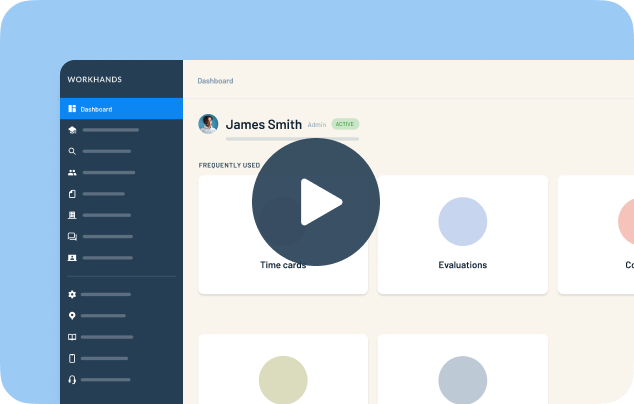
Every person in WorkHands has a status, and it controls what they can do in your program. Patrick explains when to use each status and what changes when you update it.
In this video
0:00 Find anyone's status on their account. Lists show active people by default, and you can filter for others
0:35 To change it, edit the apprentice, open their apprenticeship, and update the status
0:50 Completed closes out their account and counts them as complete in dashboards and reports
1:00 Cancelled is for apprentices who drop out, or supervisors who leave the company
1:10 Hold is for someone still in the program but away, like on medical leave
1:25 A status change can change their access and close out open time cards or reviews
1:35 View the history to see every status change over the life of the account
Related resources
Related videos


One place to manage your apprenticeship


 Made in the USA.