
How to Add a Role for an Existing WorkHands User

Some people wear more than one hat in a program, like an apprentice who becomes a supervisor. Patrick shows admins how to add a second role to an existing WorkHands user without losing any of their history.
In this video
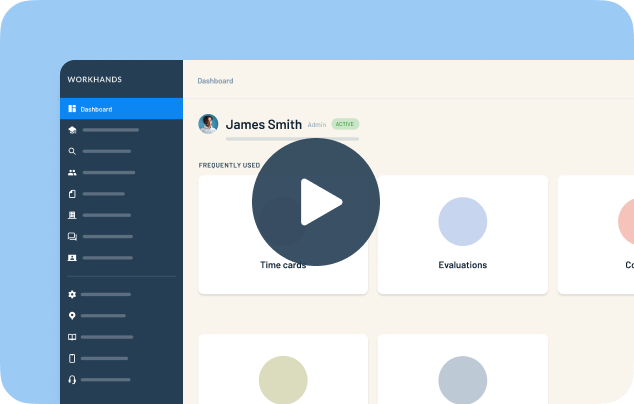
0:02 Open the user, click the blue pencil, and go into their apprenticeship
0:15 Add a role, for example make an apprentice a supervisor
0:25 Enter any extra details for the new role, like a different employer, then save
0:40 Use the role dropdown on their profile to switch between roles. Data from every role is kept
Related resources
Related videos


One place to manage your apprenticeship


AlabamaAlaskaAmerican SamoaArizonaArkansasCaliforniaColoradoConnecticutDelawareFloridaGeorgiaGuamHawaiiIdahoIllinoisIndianaIowaKansasKentuckyLouisianaMaineMarylandMassachusettsMichiganMinnesotaMississippiMissouriMontanaNebraskaNevadaNew HampshireNew JerseyNew MexicoNew YorkNorth CarolinaNorth DakotaNorthern Mariana IslandsOhioOklahomaOregonPennsylvaniaPuerto RicoRhode IslandSouth CarolinaSouth DakotaTennesseeTexasUtahVermontVirginiaVirgin IslandsWashingtonWashington D.C.West VirginiaWisconsinWyoming
 Made in the USA.